


This article is relevant if you need to download or export many image (or other) files from NetSuite’s File Cabinet.
Background
NetSuite’s file cabinet allows you to store images; just like you would any other file. The NetSuite File Cabinet offers a mechanism to download folders as zip files. Thus, it is possible to use this built-in function to download folder contents.
In our NetSuite Systems Integration practice, we store all of our clients‘ brand logos as a custom field reference in the customer record. This allows us to act with these logos in specific database operations.
Annually, we send holiday cards using our new client logos as part of the background. Thus, we need to gather all the relevant logos to hand to our Graphics Artists to help produce the content for the creative messaging objective.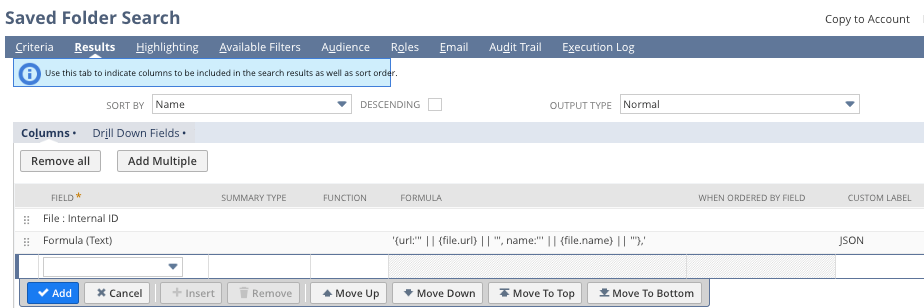
Due to the way the logos are stored in the database, the image files simply are not in a single folder by themselves. And fortunately for our business, the numbers of logos that we need to gather are many. It’s going to take some work to download the logos in a onesie-twosie fashion, so we seek some relief.
Using Saved Search to Help Download NetSuite Images
To help solve this challenge, we first needed a Saved Search to find the new customer logos. Hence, we use conventional saved search techniques to figure this question out. We then enhanced our saved search to drive a custom JavaScript function to gain reference to the logos and collect them on a local machine. Here is what we did.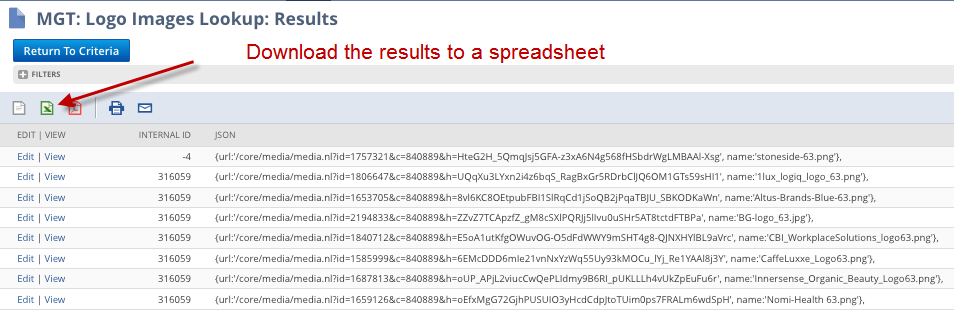
Build Folder/File Saved Search to Target Images
I assume you understand how to produce Saved Search to target the images in question. In NetSuite’s terms, we crafted a Folder Search and reached over to the Files… link to get to the file information. Click on the image to clarify.
Enhance Saved Search to Build a JavaScript Object
We then use a Formula (Text) column to create the inputs the JavaScript function needs. We want to pass an array of JavaScript objects holding both the URL and the name of the file. Thus, our formula looks as follows to gather the important URL and image name information: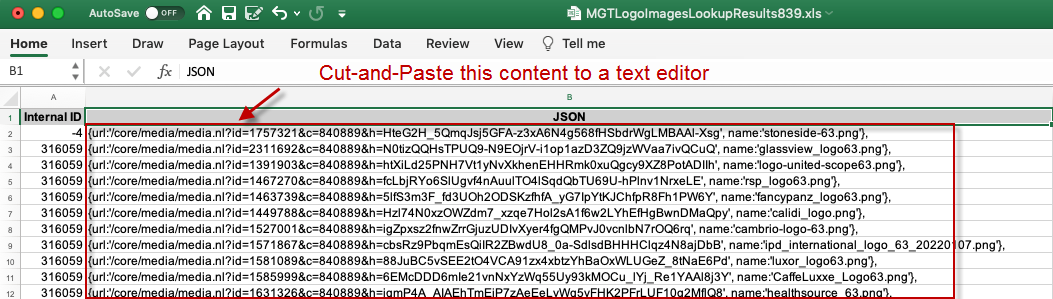
'{url:''' || {file.url} || ''', name:''' || {file.name} || '''},'
Export the Saved Search Result to a Text Editor
We need to add a bit more syntax to the Saved Search result to have the output run as a program. Specifically, we need to add brace symbols around the content using ‘[ ]’ strings. I downloaded the Saved Search result to Excel and then performed copy-paste to my text editor. I also added a reference to the custom JavaScript function (discussed below), which I called ‘downloadImage’.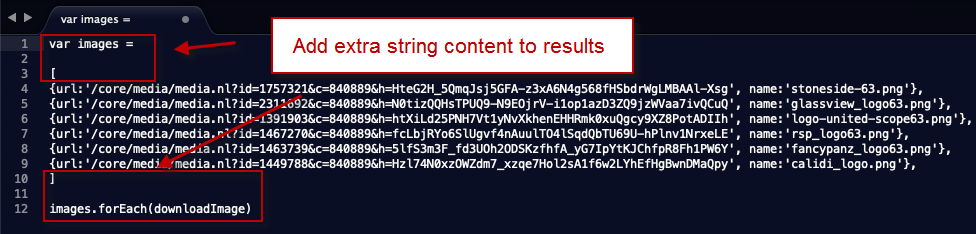
My basic program is going to loop through each image reference and call my custom downloadImage JavaScript function. All my work will be interactive as I manually manipulate the program with my browser.
Click the image for the final result to help steer you to what you need. Below is an example of the chunk of information with the proper syntax:
var images =

[
{url:'/core/media/media.nl?id=1757321&c=840889&h=HteG2H_5QmqJsj5GFA-z3xA6N4g568fHSbdrWgLMBAAl-Xs', name:'stoneside-63.png'},
{url:'/core/media/media.nl?id=2311692&c=840889&h=N0tizQQHsTPUQ9-N9EOjrV-i1op1azD3ZQ9jzWVaa7ivQCu', name:'glassview_logo63.png'},
{url:'/core/media/media.nl?id=1391903&c=840889&h=htXiLd25PNH7Vt1yNvXkhenEHHRmk0xuQgcy9XZ8PotADII', name:'logo-united-scope63.png'},
{url:'/core/media/media.nl?id=1467270&c=840889&h=fcLbjRYo6SlUgvf4nAuulTO4lSqdQbTU69U-hPlnv1NrxeL', name:'rsp_logo63.png'},
{url:'/core/media/media.nl?id=1463739&c=840889&h=5lfS3m3F_fd3UOh2ODSKzfhfA_yG7IpYtKJChfpR8Fh1PW6', name:'fancypanz_logo63.png'},
{url:'/core/media/media.nl?id=1449788&c=840889&h=Hzl74N0xzOWZdm7_xzqe7Hol2sA1f6w2LYhEfHgBwnDMaQp', name:'calidi_logo.png'},
]

images.forEach(downloadImage)
Browser Console JavaScript Program
We crafted a JavaScript program along with the previous work that we can cut-and-paste into a Browser Console. The Browser Console is available to you in your browser’s Developer Tools. Below is the simple program function to cut-and-paste along with the previously crafted content.
Click the image to see the entire content you need. When you hit Enter, the program will run, and you will be prompted by the browser to download each image.
//custom function that will prompt the user to download the file
//get the JSON from the search and craft an array by adding [ ] brace symbols
//view the console from the saved search result window as the document base reference is right

async function downloadImage(imageSrc) {
  const image = await fetch(imageSrc.url)
  const imageBlog = await image.blob()
  const imageURL = URL.createObjectURL(imageBlog)

  const link = document.createElement('a')
  link.href = imageURL
  link.download = imageSrc.name
  document.body.appendChild(link)
  link.click()
  document.body.removeChild(link)
}
Note, in discussions with other members of my team, they reminded me that I could have run the search in the console program and dynamically built the JSON object to avoid all the Excel work. Indeed, for those with the ambition, see my 2016 article Uncovered: How to use SuiteScript to Create Unpublished Saved Searches.
Manipulate NetSuite Browser-Driven Functionality
Sometimes, we get so used to the way that an application works, that we start to think it is rigid. However, NetSuite is a full browser-driven application. In contrast to logic on the server, this means that once that application draws in your browser, you have a world that opens. Limitations are simply blindness in our understanding. Indeed, there may be complexity under the covers — yet, that complexity can be deciphered to drive one-time or ongoing solutions.
If you found this article relevant, feel free to sign up for notifications to new articles as I post them. If this article resonates with you because you are the type of individual that frequently cracks these types of puzzles, perhaps you would like to belong to a team of senior professionals dedicated to innovation and high standards of NetSuite care. If so, let’s have a conversation.










Brilliant as always. Thank you Marty Z!