


Use an “Analytics Audit Trail” type Saved Search to find references within other Saved Searches

Introduction
Saved Searches are probably the most widely-used reporting tool in NetSuite. They are often used to stay in control of what is happening in the environment using email alerts and dashboards and the like. Sometimes, though, Saved Search criteria or results include references to specific text values that may be subject to change, posing a risk that the search can eventually become obsolete or misleading.
Use Case
For example, consider a custom field on a Purchase Order “Custom Status” with a drop down list of values. If the text in the drop-down is referenced in a search formula, and later someone changes the wording of the text, the saved search will no longer be accurate. This article will show how to prevent and detect record changes that will adversely impact existing Saved Searches.
AI Summary:
Saved searches that reference literal text in formulas break silently when someone renames the referenced value. An Analytics Audit Trail search finds every saved search formula containing specific text, and referencing internal ids instead of text prevents the problem in the first place.
Best Practices: Use Internal IDs
Before the solution, I would like to point out that it’s never good practice to reference specific text in a formula, if it can be avoided. It is much better to use the internal id as a reference. Here’s a handy tip: You can usually add “.id” in a formula to get the internal id of the list value or record value, even when the field/record is more than two joins away. For example, to reference a Location value of the Sales Order transaction on an Invoice search, you can use “{createdfrom.location.id} = 3” instead of something like “{createdfrom.location} = ‘Main Warehouse’.” (Hat tip to Sean G., my colleague at Prolecto who taught me that.)
Solution: Analytics Audit Trail Search
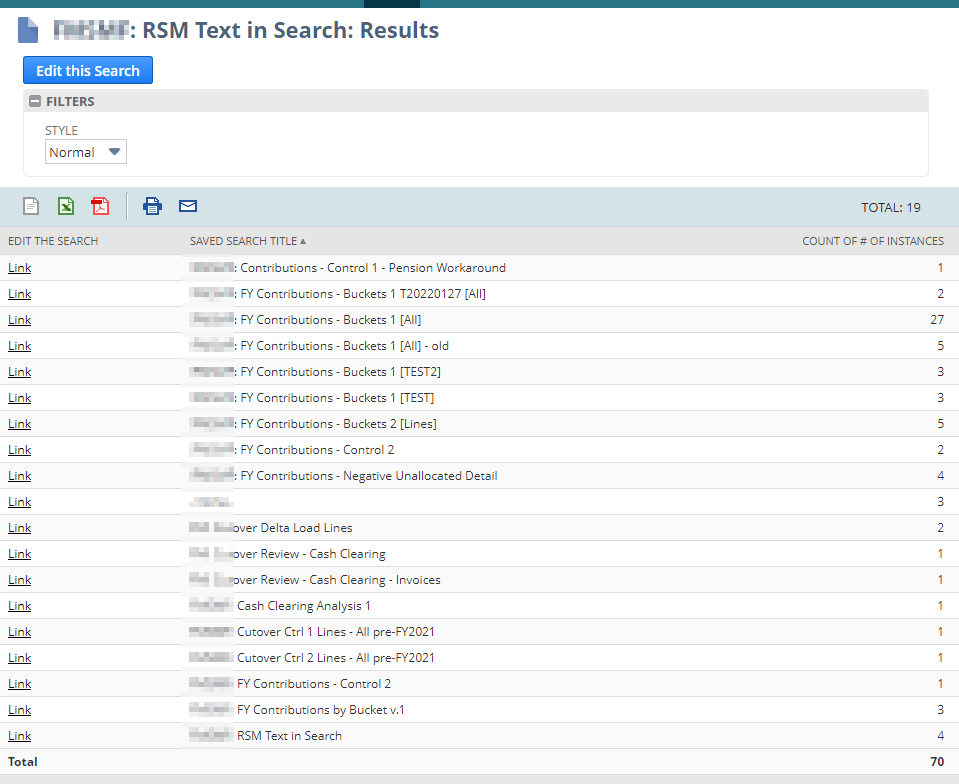
Now for the solution, in cases where the best practice advice described above was not followed and specific text was used in formulas: Use an Analytics Audit Trail Search! Navigate to Lists > Searches > Saved Searches > New and select “Analytics Audit Trail” as the search type. Below is sample criteria and results for a search I created where I was looking for formulas in Saved Searches that were referencing fields that contained a number from 1-7 with a hyphen afterwards:
Criteria Tab
| Filter | Description | Formula |
| Formula (Numeric) | is 1 | CASE WHEN {newvalue} LIKE ‘%1-%’ THEN 1 WHEN {newvalue} LIKE ‘%2-%’ THEN 1 WHEN {newvalue} LIKE ‘%3-%’ THEN 1 WHEN {newvalue} LIKE ‘%4-%’ THEN 1 WHEN {newvalue} LIKE ‘%5-%’ THEN 1 WHEN {newvalue} LIKE ‘%6-%’ THEN 1 WHEN {newvalue} LIKE ‘%7-%’ THEN 1 ELSE 0 END |
| Component Name | contains formula |
Note: the “Component Name — contains formula” is telling the search to look for saved search “components” (= criteria, columns, or filters) that are of the “formula” type.
Results Tab
| Field | Summary Type | Formula |
| Formula | Group | ‘<a href=https://system.netsuite.com/app/common/search/search.nl?e=T&id=’ || {savedsearch.internalid} || ‘ target=_blank>Link</a>’ |
| Record Title | Group | |
| New Value | Count |
Note that the Formula in the Results tab creates hyperlinks to the saved searches that contain the text we are looking for. For more help in creating hyperlinks in saved searches, see this article by Marty Zigman.
Next Step: Stay ahead of the curve
If there are custom lists or other records in the environment that are likely to be referenced in Saved Searches, it also can be valuable to use the above saved search as a link in a second saved search which can drive an email alert to warn a user about the change and provide an actionable list. For example, if you know that the location names are often referenced in Saved Searches, you can set up an alert every time a Location name changes with a list of other saved searches that are impacted.
Conclusion
The Analytics Audit Trail Search is a really handy resource to stay on top of changes that affect existing reports. If you would like to learn more about this feature or would like creative solutions for NetSuite problems, I’d be happy to hear from you!
Frequently Asked Questions
How do I find which NetSuite saved searches reference specific text?
Create a saved search of the type Analytics Audit Trail, filter Component Name to contains formula, and use a formula on New Value to match the text you are hunting for. The results can even include hyperlinks to the searches that contain the text.
What is the best practice for referencing values in saved search formulas?
Use internal ids rather than text. You can usually add .id in a formula, even when the field is more than two joins away, so a renamed list value will not silently break your search.